Excel exposes two different measurements for a column. Range.ColumnWidth is writable, but its unit is based on the width of one character in the workbook's Normal style. With a proportional font, Excel uses the width of the digit zero. Range.Width, by contrast, is read-only and reports the rendered range width in points.
This mismatch matters when a workbook must reproduce a physical layout, align drawing objects with cells, or import dimensions specified in points, millimeters, centimeters, or inches. There is no direct writable ColumnWidthPoints property, so VBA has to set character units, measure points, and refine the result.
Why One Proportional Correction Is Not Exact
A tempting conversion scales the current character width by the ratio between target and measured points:
With Worksheets("Sheet1").Columns("A")
    .ColumnWidth = 123# / .Width * .ColumnWidth
End With
This often gets close, but it assumes that point width is exactly proportional to ColumnWidth. Excel applies font metrics, cell padding, and discrete width steps. The assigned character width is therefore rounded to a representable value, and the next .Width measurement may differ from the target. Repeating the expression a fixed number of times improves some cases without defining an error bound or a stopping condition.
The Normal style controls the character metric behind ColumnWidth. It can be inspected or changed under Home > Cell Styles > Normal > Modify:
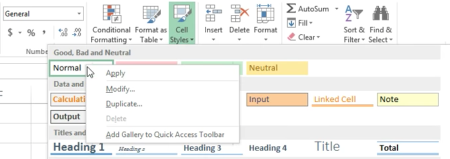
A robust routine should not attempt to predict that font-dependent mapping. It should use .Width as the measured result and search the legal .ColumnWidth range.
Set a Single Column Width in Points
The function below performs a bounded binary search. It retains the best representable width seen, stops early when the requested tolerance is met, and returns the actual width in points. Excel's maximum ColumnWidth is 255 character units.
Option Explicit

Public Function SetColumnWidthPoints( _
    ByVal targetColumn As Range, _
    ByVal targetPoints As Double, _
    Optional ByVal tolerancePoints As Double = 0.25 _
) As Double
    Const MaxColumnWidth As Double = 255#
    Const MaxIterations As Long = 24

    If targetColumn Is Nothing Then
        Err.Raise 5, "SetColumnWidthPoints", "A target column is required."
    End If

    If targetColumn.Columns.Count <> 1 Then
        Err.Raise 5, "SetColumnWidthPoints", "Pass exactly one column."
    End If

    If targetPoints < 0# Then
        Err.Raise 5, "SetColumnWidthPoints", "The width cannot be negative."
    End If

    If tolerancePoints <= 0# Then
        Err.Raise 5, "SetColumnWidthPoints", "The tolerance must be positive."
    End If

    Dim columnRange As Range
    Set columnRange = targetColumn.Worksheet.Columns(targetColumn.Column)

    If targetPoints = 0# Then
        columnRange.Hidden = True
        SetColumnWidthPoints = 0#
        Exit Function
    End If

    Dim originalColumnWidth As Double
    Dim originalHidden As Boolean
    originalColumnWidth = columnRange.ColumnWidth
    originalHidden = columnRange.Hidden

    On Error GoTo RestoreOnError

    columnRange.Hidden = False
    columnRange.ColumnWidth = MaxColumnWidth

    If columnRange.Width + tolerancePoints < targetPoints Then
        Err.Raise vbObjectError + 2048, "SetColumnWidthPoints", _
            "The requested width exceeds Excel's maximum column width."
    End If

    Dim lowerBound As Double
    Dim upperBound As Double
    Dim candidate As Double
    Dim measuredPoints As Double
    Dim difference As Double
    Dim bestColumnWidth As Double
    Dim bestDifference As Double
    Dim iteration As Long

    lowerBound = 0#
    upperBound = MaxColumnWidth
    bestColumnWidth = columnRange.ColumnWidth
    bestDifference = Abs(columnRange.Width - targetPoints)

    For iteration = 1 To MaxIterations
        candidate = (lowerBound + upperBound) / 2#
        columnRange.ColumnWidth = candidate
        measuredPoints = columnRange.Width
        difference = Abs(measuredPoints - targetPoints)

        If difference < bestDifference Then
            bestDifference = difference
            bestColumnWidth = columnRange.ColumnWidth
        End If

        If difference <= tolerancePoints Then Exit For

        If measuredPoints < targetPoints Then
            lowerBound = candidate
        Else
            upperBound = candidate
        End If
    Next iteration

    columnRange.ColumnWidth = bestColumnWidth
    SetColumnWidthPoints = columnRange.Width
    Exit Function

RestoreOnError:
    Dim savedNumber As Long
    Dim savedSource As String
    Dim savedDescription As String

    savedNumber = Err.Number
    savedSource = Err.Source
    savedDescription = Err.Description

    On Error Resume Next
    columnRange.ColumnWidth = originalColumnWidth
    columnRange.Hidden = originalHidden
    On Error GoTo 0

    Err.Raise savedNumber, savedSource, savedDescription
End Function
Use the function with an entire column or any range that occupies exactly one column:
Dim actualPoints As Double

actualPoints = SetColumnWidthPoints( _
    Worksheets("Sheet1").Columns("A"), _
    123# _
)

Debug.Print "Actual width:"; actualPoints
The return value is important. Excel can represent only discrete widths, so an arbitrary target may not be exactly attainable. The default quarter-point tolerance is usually tighter than a visible layout requires, while the best measured candidate remains useful when the loop reaches its iteration limit.
Convert Inches, Centimeters, and Millimeters
Excel provides conversion methods for inches and centimeters. Convert millimeters to centimeters first:
Dim widthInInches As Double
Dim widthInCentimeters As Double
Dim widthInMillimeters As Double

widthInInches = Application.InchesToPoints(1.75)
widthInCentimeters = Application.CentimetersToPoints(4.5)
widthInMillimeters = Application.CentimetersToPoints(45# / 10#)

Call SetColumnWidthPoints(Columns("B"), widthInInches)
Call SetColumnWidthPoints(Columns("C"), widthInCentimeters)
Call SetColumnWidthPoints(Columns("D"), widthInMillimeters)
A point is exactly 1/72 inch. The built-in methods are preferable to repeating conversion constants throughout a workbook and make the unit at each call site explicit.
Apply a Width to Several Columns
The function deliberately accepts one column because ColumnWidth returns Null when a multi-column range contains different widths. Loop explicitly when several columns need the same physical width:
Dim oneColumn As Range
Dim targetPoints As Double

targetPoints = Application.CentimetersToPoints(3#)

For Each oneColumn In Worksheets("Sheet1").Columns("B:D").Columns
    Call SetColumnWidthPoints(oneColumn, targetPoints)
Next oneColumn
This also makes partial failure visible: each iteration targets one unambiguous Excel column.
Understand the Limits
- Style changes alter the mapping. Changing the Normal style font can change the point width represented by the same
ColumnWidthvalue. - AutoFit overwrites the result. Apply the physical width after any
AutoFitoperation. - Zero means hidden. The function maps a zero-point request to
Hidden = True; negative widths are rejected. - Exact equality is not guaranteed. Excel rounds column widths, so compare the returned point width against a tolerance.
- Pixels are device-dependent. Points describe 1/72 inch, but screen pixels also depend on zoom, scaling, and rendering.
- Merged cells need separate handling. Set the underlying worksheet columns rather than treating a merged cell as one adjustable column.
If the goal is simply to reveal all cell contents, use Columns("A").AutoFit. Point-based sizing is for layouts where physical dimensions matter more than the current cell contents.
References
- [ColumnWidth]Microsoft Learn: Range.ColumnWidth property.
- [Width]Microsoft Learn: Range.Width property.
- [InchesToPoints]Microsoft Learn: Application.InchesToPoints method.
- [CentimetersToPoints]Microsoft Learn: Application.CentimetersToPoints method.
- [AutoFit]Microsoft Learn: Range.AutoFit method.